> For the complete documentation index, see [llms.txt](https://minimateapps.gitbook.io/mini-image-upload-and-file-upload/llms.txt). Markdown versions of documentation pages are available by appending `.md` to page URLs; this page is available as [Markdown](https://minimateapps.gitbook.io/mini-image-upload-and-file-upload/how-to.../how-to-set-up-an-add-on-price-for-image-upload-fields.md).
# How to set up an add-on price for image upload fields?
Charge customers an additional fee when they use the upload field.Add-on Price Options
* Please go to the "Upload Rules" tab while creating a field
* Click "Add a rule" button
* Scroll to the **Pricing** section and select "Customization fee"
Choose how the add-on charge is applied to the cart:
* **Regular add-on product** — adds the charge as a separate item in the cart. Works fine with most stores and is compatible with certain bundle apps like Kaching Bundle.
* **Bundling function** — adds the charge as a bundle alongside the main product. Not compatible with bundle/upsell apps due to Shopify's limitation.
* Next, set up the product that represents the add-on charge in your Shopify store:
* Create a product in Shopify to represent the additional charge (for example, "Customization Fee" priced at $5)
* Make sure it has sufficient stock — we recommend unticking **"Track quantity"** in Shopify so it never runs out
* Click "Select product" and choose the product you just created
* Once selected, the product will appear in the **Selected product** table. You can change it anytime by clicking "Change product".
{% hint style="info" %}
We recommend hiding the add-on product from your storefront so customers don't see it as a standalone item. You can do this by removing it from all sales channels or all collections in Shopify.
{% endhint %}
**1. Regular Add-on Product (Recommended)**
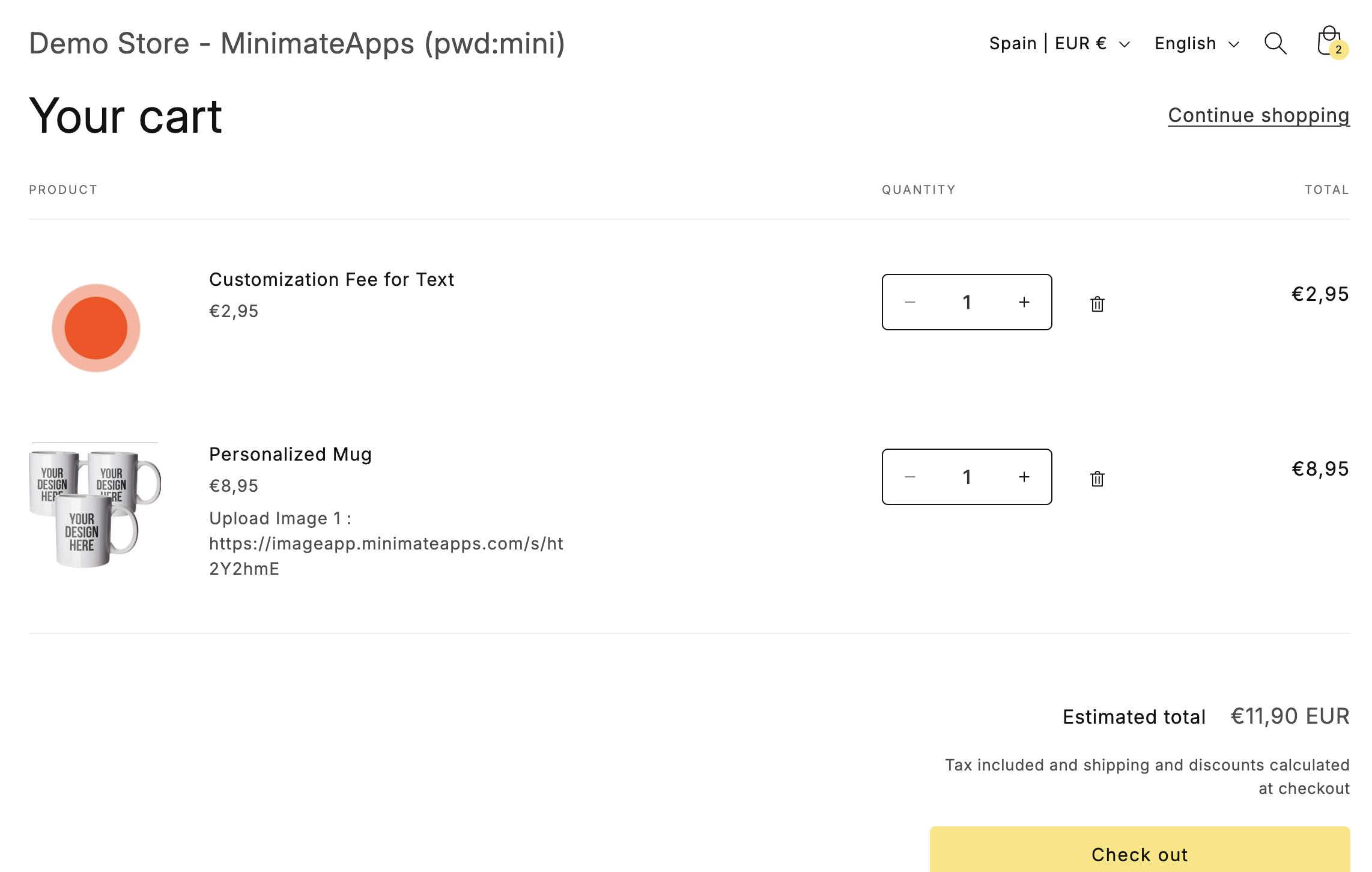
This option adds the extra charge as a separate product in the cart.
**How it works**
* The add-on fee appears as a separate line item in the cart
* Customers will see it as an additional product
* It can be removed manually from the cart
**When to use**
* If you are using bundle apps (e.g. Kaching Bundle)
* If you want more flexibility with cart items
* If you don't mind customers being able to remove the add-on
**Important notes**
* Customers can delete the add-on product from the cart
* Compatible with most bundle apps (e.g. Kaching Bundle)
* Displayed as a separate product (not merged with the main item)
How Regular add-on looks
{% hint style="info" %}
Regular add-on product is the recommended default. It works reliably across most stores and is compatible with the widest range of themes and apps.
{% endhint %}
**2. Bundling Function (Advanced)**
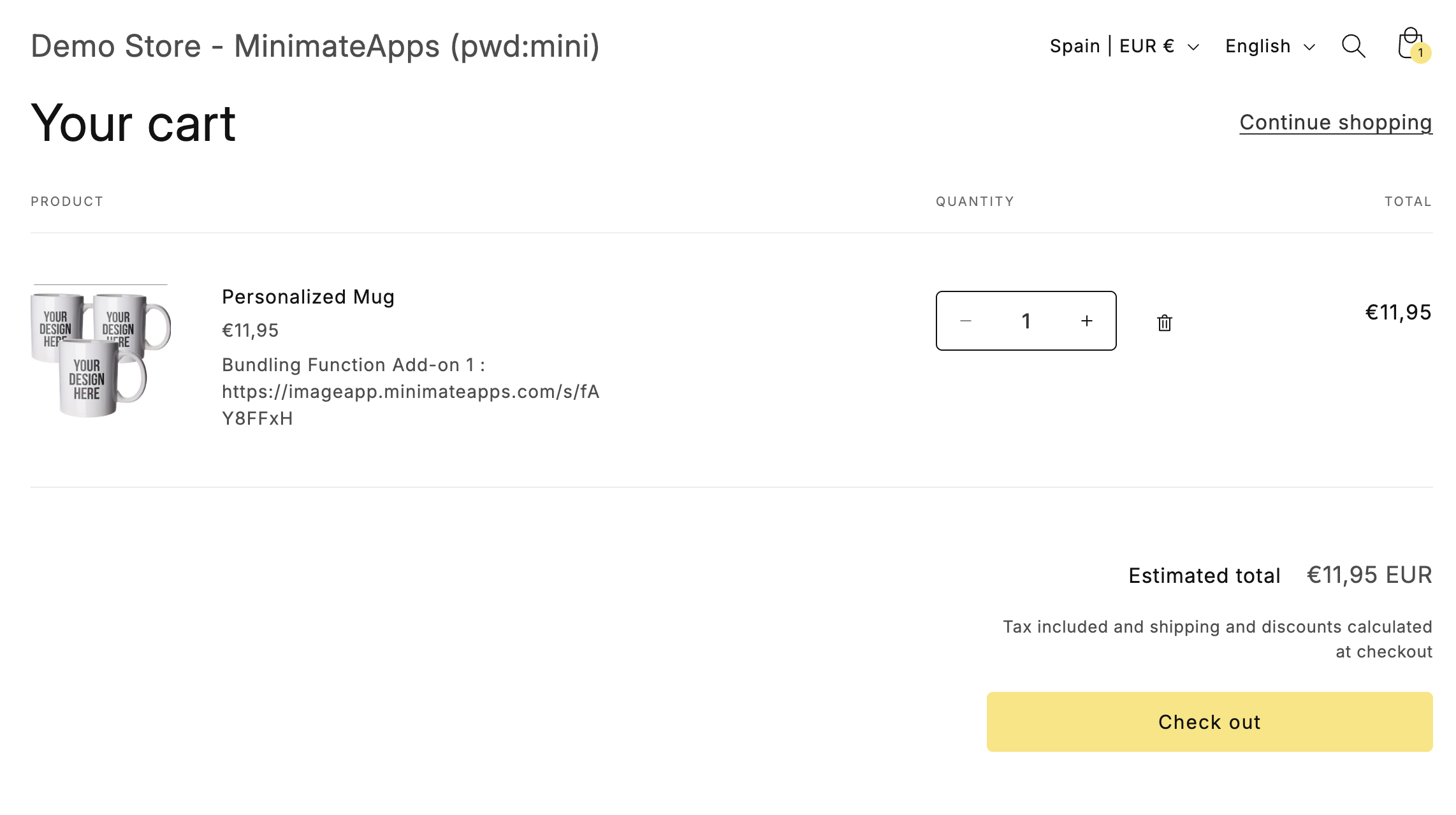
This option adds the extra charge as part of the main product (bundled together).
**How it works**
* The add-on fee is combined with the main product price
* It does not appear as a separate product
* Customers cannot remove the add-on separately
**When to use**
* If you want a cleaner cart experience
* If the add-on should feel like a required part of the product
* If you want to prevent customers from removing the add-on
**Important notes**
* Not compatible with bundle or upsell apps
* This is due to Shopify platform limitations
* Removing the main product also removes the add-on charge
How bundling add-on looks
{% hint style="warning" %}
If your store already uses another bundling app or function (like Shopify Bundles), the Bundling function option may not work. In that case, please switch to "Regular add-on product".
{% endhint %}